

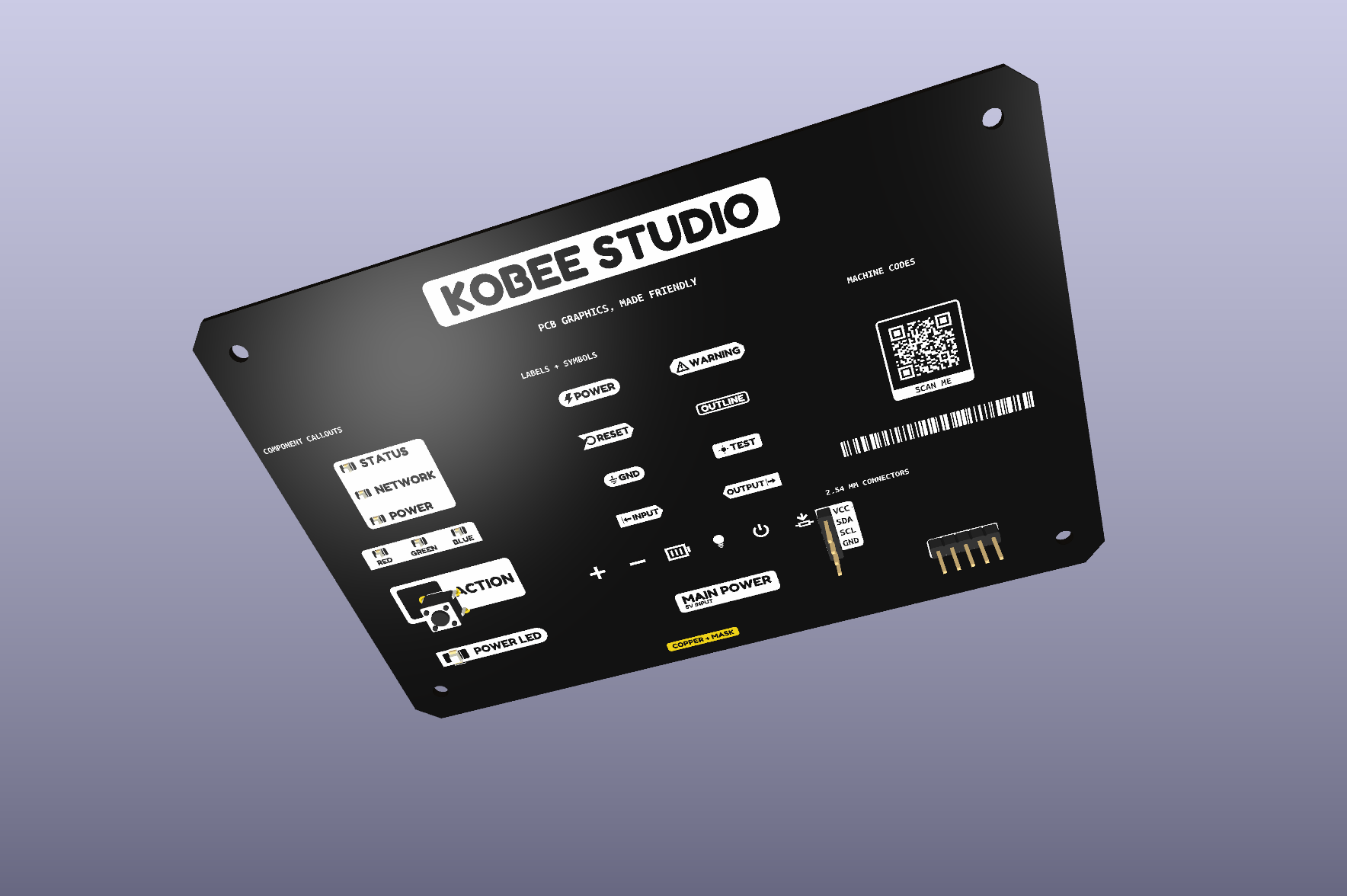
The labels on a PCB do a lot of work. A pin legend helps someone wire it correctly. A revision marking tells you which board is on the bench. A small symbol can save a trip back to the schematic.
Kobee Studio started with making those markings easier to draw inside KiCad. For 1.5.20, I’ve been working on the part around the drawing too: finding the right font, reusing artwork, keeping labels aligned as they change, and making the editor more dependable during an ordinary board-design session.
This post is a look at the 1.5.x development work, currently versioned 1.5.20. It is being prepared as a testing candidate, rather than announced here as a published stable release. As of 5 November 2026, GitHub and KiCad’s official catalogue still offer 1.4.1 as the latest public stable version.
The example board above is a KiCad render, not a photograph of a manufactured board. It shows the sort of markings the project is built around; the 1.5.x work expands the tools behind them.
It still starts with a label
Kobee Studio began as a fork of KiBuzzard, by Greg Davill. I liked its idea: type some text and make a useful marking in KiCad. I kept building because I wanted the same workflow for the other things I put on a board—connector legends, small symbols, revision details and the occasional bit of artwork.
If that is how you found the project, I’ve written a separate KiBuzzard comparison and a short account of why I kept building. KiBuzzard deserves the credit for the starting point.
More control over the text on your board
You can activate system fonts or install individual faces from Google Fonts. The font library lets you search, preview a face through the PCB-vector renderer, and keep favourites close to hand. Downloads retain their licence files, and installed faces can be used offline. If a downloaded font goes missing, the repair flow restores its saved identity so existing artwork can find it again.
Labels also gain independent overline and underline controls, including the gap and thickness. Optional text formatting adds subscript and superscript groups such as D_{0} and V^{2}, along with scoped overlines and underlines. Formatting is opt-in: existing labels keep their literal characters until you enable it.
These details are useful for the markings engineers actually put on boards: bus names, active-low signals, units and short technical annotations.
Keep the right point in the same place
A longer label shouldn’t always mean another positioning job. There are now nine placement anchors, with an origin marker in the preview, so you can choose which part of the artwork stays attached to its placement point.
For example, use a right-side anchor for labels along the right edge of a board. Changing the wording can then grow the artwork towards the board interior while retaining the chosen anchor. The same idea helps when lining up markings against a connector or a component.
Build a library you can use again
Personal and project libraries bring custom SVGs, icon variants and reusable graphics into the same workflow. PNG tracing has a preview, and imported artwork can be resized and transformed before placement.
Connector overlays support common pitches and a custom pitch, with rectangular openings for headers that need them. Variable labels, component callouts, arrays, QR codes and Code 128 barcodes sit alongside these tools, so more of the board’s visual documentation can be made in one place.
There’s a practical benefit to keeping the library with the project: the next board revision can start from the same symbols and visual choices.
A closer look at reliability
The work here included reproducing reported problems and checking what KiCad actually saves.
One complex, inverted 32-pin overlay produced 3,912 polygons and caused a long stall when its position was edited in KiCad’s native properties dialog. Compacting the geometry reduced that example to 379 polygons while preserving its material coverage. The native position edit then completed promptly in the local check. I also fixed hidden footprint fields with zero-sized text, which could prevent a native edit from saving.
A separate placement report pointed to a KiCad transaction crash before artwork creation. Kobee now checks for the affected combination on KiCad 10.0.0–10.0.6 and explains when Schematic Editor needs to be closed, or KiCad upgraded, before placement can continue. The exact reporter setup still needs confirmation.
Inside the editor, invalid previews disable placement, library changes preserve unsaved forms, and closed dialogs stop their preview timers and ignore late background results. Settings scroll on smaller windows, font columns stack when needed, and action buttons keep up with their labels and enabled state.
Project details that can travel with the board
There is also a Project Data workspace for board names, revision details and reusable fields. The useful boundary is explicit: save the project record, preview the proposed KiCad variables, then sync them when you mean to. A saved revision checkpoint does not publish anything by itself.
Those values can feed a reusable variable label. If a revision string changes, reopen the artwork and update its generated geometry before making fabrication files. I want this to save some repetitive typing while keeping the actual board change visible and deliberate.
What I’ve checked, and what comes next
The reviewed build passed 294 regression tests and 92 repeated UI workflow checks. I also checked live placement, editing, saving and native reload on a disposable board using KiCad 10.0.5 on macOS, plus a real font download followed by offline rendering.
That gives me useful evidence for these fixes. Windows and Linux visual acceptance, the remaining fabrication-view checks and the exact crash-reporter environment still need testing before a stable release.
Install through KiCad’s official catalogue
Kobee Studio is already in KiCad’s official plugin repository. That should be the normal starting point: open Plugin and Content Manager from KiCad’s main window, select the official repository, refresh, search for Kobee Studio, choose Install, and apply the pending changes. You do not need a custom repository URL for that route.
The version in the catalogue matters. At the time of writing it is 1.4.1 stable; being listed there does not mean the 1.5.x candidate has already completed its separate publication and metadata review. Check the offered version rather than assuming a blog post changed it.
The install guide keeps the alternatives too: my custom stable/testing catalogues and a matching PCM ZIP through Install from File…. Use those when you deliberately want a different available build. A local source candidate is not a public download until its package is published.
The 1.5.x notes and development manual go into the details. If you try a testing build, report an issue with your KiCad version, operating system and the steps that reproduce the problem. A small example board is especially helpful.
I’m building this because I enjoy making boards and want the small marks on them to be easier to make, use and change. Seeing where the tools help—or get in the way—gives me something concrete to work on next.